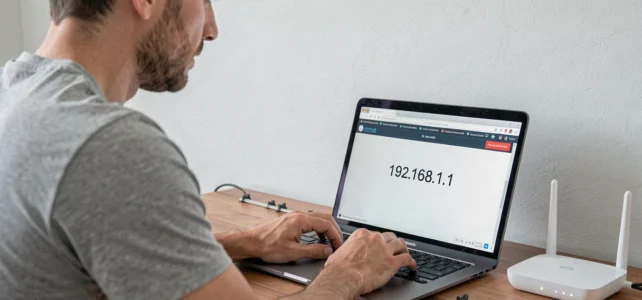
The address 192.168.1.1 remains the entry point to the administration panel of most internet boxes sold in France. Typing this string of numbers into a browser opens an interface that allows you to change the Wi-Fi password, adjust broadcasting channels, or check the devices connected to the local network. The process seems simple, but several technical obstacles regularly prevent users from reaching this page.
Secure DNS and HTTPS: the blockage that ISPs do not explain
Since recent browsers enable a secure DNS mode (DNS over HTTPS) by default, accessing a local IP address like 192.168.1.1 can be problematic. The browser attempts to resolve the address via a remote DNS server, which does not recognize this private IP. The result: an HTTPS error page instead of the administration interface.
Read also : How to Easily Access Your Neuf Mail Online Inbox
The workaround is to temporarily disable secure DNS in the browser settings before entering the address. In Chrome, the setting can be found under Settings > Privacy and security > Security > “Use a secure DNS”. In Firefox, you need to look in the network settings for the option “Enable DNS over HTTPS” and uncheck it.
This conflict between browser security and access to a local network does not appear in any official guides from French operators. A guide provided by Vox Libris details the complete connection procedure, but the issue of secure DNS deserves special attention because it concerns all ISPs without distinction.
Further reading : How to Access eCandidat Valenciennes to Easily Submit Your Application Online
Another trap related to the protocol: some users type “https://192.168.1.1” instead of “http://192.168.1.1”. Most boxes do not have a valid SSL certificate for their local interface. The HTTPS prefix triggers a security warning that many mistakenly interpret as a sign of hacking or failure.
IP address by operator: 192.168.1.1 is not universal
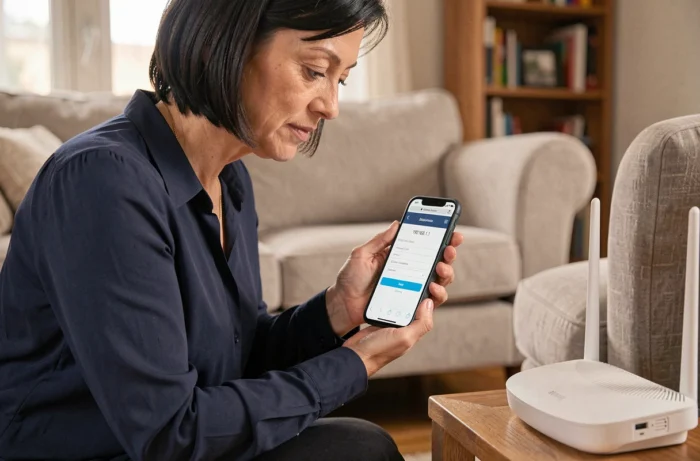
The address 192.168.1.1 works for Orange’s Liveboxes (models 4, 5, 6, and 7) and for SFR boxes. However, other operators use different local addresses or domain names.
- At Free, access to the Freebox interface goes through mafreebox.freebox.fr, a local domain name that points to the router without needing to know the exact IP.
- At Bouygues Telecom, the Bbox responds to the address mabbox.bytel.fr or to 192.168.1.254, not to 192.168.1.1.
- At Orange, an alternative shortcut exists: simply typing “http://livebox/” in the address bar redirects to the administration interface.
Getting the address wrong is the most common cause of connection failure. Before any attempt, checking the default gateway address directly on the system remains the most reliable method. On Windows, the command “ipconfig” in the command prompt displays the line “Default Gateway”. On macOS, the information can be found in System Preferences > Network > Advanced > TCP/IP.
Administrator password: the gradual end of “admin/admin”
For years, the username “admin” and password “admin” (or a blank field) were enough to open the administration panel of any home router. That era is coming to an end.
Some recent routers require the user to set their own password upon first startup. Firmware versions 3.0.0 and later of certain Netis models, for example, require the creation of a custom password at the first connection. This shift aligns with the recommendations of ANSSI and NIST, which advocate for passwords long enough to be 12 to 15 characters and the abandonment of default credentials.
For the boxes of French operators, the situation varies. Recent Liveboxes display the administration password on a label stuck under the device or on the built-in screen. If this password has been changed and then forgotten, the only solution is a complete reset of the box (Reset button held for several seconds), which erases all custom configurations: Wi-Fi network name, port forwarding, MAC address filtering.
Access via mobile app: connecting without entering 192.168.1.1
The Livebox 6 and Livebox 7 offer access to the administration interface directly from the “Orange et moi” app, using the client space credentials. This method bypasses the problem of the local administration password.
On these models, a QR code displayed on the box’s screen allows a smartphone to connect in one step. Authentication then relies on the identity of the line holder, not on a generic password printed under the device. Access friction decreases, but this ease comes at a cost: advanced settings may sometimes remain inaccessible from the app.
Port forwarding, firewall configuration, or changing the Wi-Fi channel still require, on most boxes, going through the complete web interface via a browser. The mobile app covers common uses (changing the network name, viewing the list of connected devices, restarting the box remotely), but not the entirety of the administration panel.
Wired or Wi-Fi connection: a detail that matters
Accessing 192.168.1.1 assumes an active connection to the local network of the box, either via Wi-Fi or Ethernet cable. A connection via mobile data (4G/5G) will never allow reaching this address, as the phone is then not on the same network.
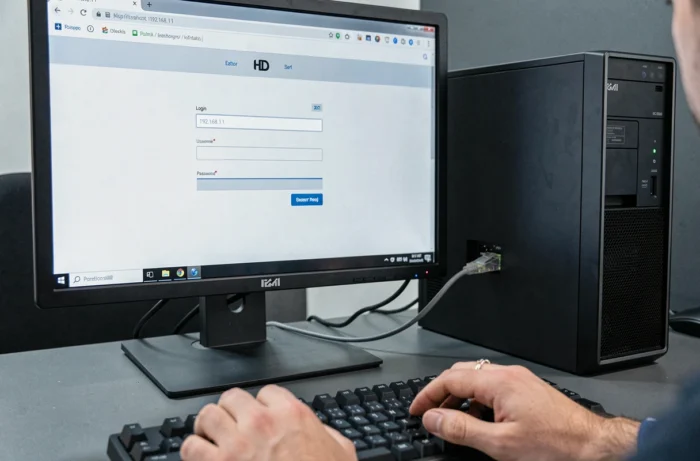
In case of Wi-Fi issues, plugging an Ethernet cable between the computer and the box ensures stable access to the interface. This precaution proves particularly useful during a first installation or after a reset, when the wireless network is not yet configured.
The interface 192.168.1.1 remains a powerful tool for managing your home network, provided you know the exact address of your box, use the correct HTTP protocol, and have the administrator password. Recent developments in boxes and browsers add layers of complexity that operator guides have not yet integrated into their official documentation.