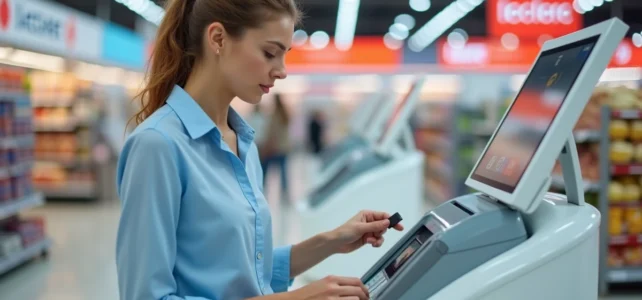
You arrive at the local Leclerc with a USB key, a file to print for an administrative folder or a school presentation, and you find yourself facing a kiosk with no visible instructions. The service exists in many E.Leclerc hypermarkets, but its actual operation varies from one store to another. Preparing your file before you leave and knowing a few common friction points can save you considerable time on-site.
PDF or image file: what the kiosk really accepts
Most in-store printing kiosks read files stored on USB keys or memory cards. The PDF format remains the most reliable for a text document because it preserves the layout, fonts, and margins as you defined them on your computer.
See also : Practical guide to access academic webmail Dijon and manage your emails easily
Standard image files (JPEG, PNG) also work, especially for photos or simple visuals. However, native word processing formats (.docx, .odt) often encounter compatibility issues. Converting your document to PDF before you leave eliminates almost all unpleasant surprises at the kiosk screen.
One often overlooked point is the resolution of the file. For a text document, this is rarely an issue. For an image intended to be printed in A4, a resolution that is too low results in a blurry output. Make sure your image has at least several million pixels if you aim for a sharp print.
See also : How much does it cost to clean an apartment? Rates, tips, and things to know
When preparing for document printing at Leclerc, this step of conversion and prior verification makes all the difference between a quick trip to the store and a frustrating round trip.
Check the availability of the service before heading out
Not all E.Leclerc stores offer the same level of printing service. Some hypermarkets have self-service kiosks in the photo area, while others only offer photo printing without options for standard documents. Calling the store before you go is the safest reflex.
The E.Leclerc website allows you to locate nearby stores but does not always specify if a document printing kiosk is available. A quick call to the store’s reception confirms three things:
- The actual presence of a kiosk or printing service (and not just photo)
- The available paper formats on-site (A4 systematically, A3 depending on the location)
- The hours of the relevant department, which may differ from those of the hypermarket itself
Feedback on this point varies according to local chains: some stores manage printing through the cultural area, while others do so through the photo department. Asking for the exact location avoids wandering through the aisles.

Printing settings on the kiosk: color, format, and margins
Once at the kiosk, the interface typically offers a choice between color and black and white printing, followed by the paper format. Selecting black and white for a text document significantly reduces the cost. Color is justified for graphics, embedded photos, or marketing documents.
Margins can be a classic pitfall. If your document has been formatted with very narrow margins, the kiosk may cut off text at the edges. Most printers of this type apply an uncompressible margin of about five millimeters on each side.
Adjusting the layout before printing
To avoid any loss of content, set your document with margins of at least one centimeter in your word processing software before exporting to PDF. A document with margins that are too tight will lose text when printed.
If you are printing a table or visual in landscape format, ensure that the orientation is correctly defined in the PDF file itself. On some kiosks, the rotation option does not exist: it is the source file that determines the final orientation.
Printing prices at Leclerc: what affects the cost
Prices are not uniform from one store to another. Several factors influence the final price:
- The choice between color and black and white (black and white is significantly cheaper)
- The paper format (an A3 costs more than an A4)
- The volume printed (some stores apply a sliding scale price beyond a certain number of pages)
Checking the price list displayed next to the kiosk before starting the job avoids surprises at the checkout. Prices indicated online or on third-party sites are often indicative and may not correspond to your store.
For a large volume of administrative documents, comparing with a dedicated reprographic service or an online printing service may be worthwhile. The Leclerc service is optimized for quick small print runs, not for files of several hundred pages.
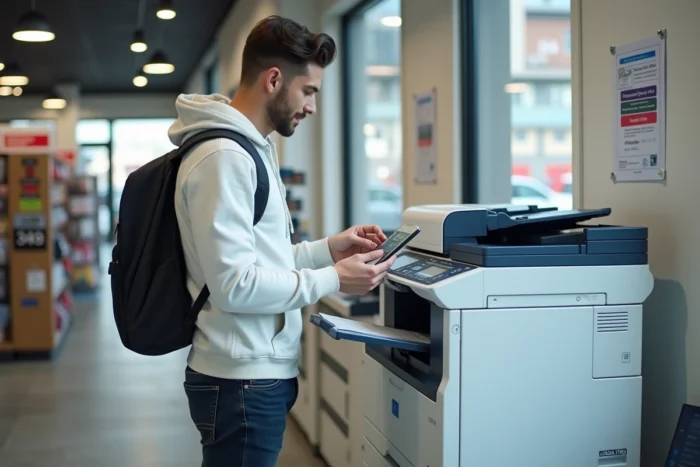
Tips for quick and smooth printing
Time savings are made before arriving at the store. A few simple habits can transform the experience:
Properly prepare your USB key
Place your files at the root of the USB key, not in nested subfolders. Rename them with descriptive names (for example, “invoice-june.pdf” rather than “doc_final_v3_bis.pdf”). Some kiosks display file names in a truncated manner, and finding the right document in an unreadable list wastes time.
Check the result before multiplying copies
Printing a single test page before launching a complete batch allows you to check the margins, readability, and color rendering. On a self-service kiosk, reprinting ten copies of a poorly framed document is costly and time-consuming.
Also, remember to retrieve your USB key or memory card before leaving the kiosk. Forgetting is common, especially when in a hurry, and the personal data on the device is not protected.
In-store printing at Leclerc works well for occasional needs: an administrative form, a train ticket, a few photos. A clean PDF file, prior verification of the available service, and the habit of a test page cover most situations without unpleasant surprises.